Kollab
Docs
Kollab is an influencer marketing platform that connects brands with creators and talent managements to run influencer marketing campaigns.
As a brand, Kollab gives you a single workspace to discover creators, track campaign performance, measure Shopify revenue attributed to each creator, and collaborate on briefs and assets, without spreadsheets or email chains.
The core flow is: Discovery → Match → Campaign → Revenue tracking. Creators and talent managements see your brand first and react. When you accept their interest, a mutual match is formed. You then create a campaign from that match and track monthly compensation and Shopify orders from there.
Brand accounts require a company email address and a shop URL. Personal email addresses (Gmail, Hotmail, Yahoo, etc.) are not accepted.
Open the sign-up page
Go to joinkollab.com/signup. You can continue with Google or with a magic link sent to your email. No password is needed.
Enter your name and choose Brand
Pick Brand as your account type so Kollab sets up a brand workspace for you.
Add your organisation name and shop URL
Enter your company name and your store's domain (e.g. yourbrand.com or yourbrand.myshopify.com). Brand accounts require a company email: free providers (Gmail, Hotmail, Yahoo, etc.) are blocked, and your email domain must match your shop URL domain. If they don't match, Kollab shows the exact reason so you can correct it.
Accept the terms and finish
Confirm you accept the terms and privacy policy to complete sign-up. You land directly in your brand workspace.
Set up your brand profile
Add your brand logo and a short description. This is what creators and talent managements see when they review your brand in Discovery.
Joining an existing team
If your company already has a Kollab account, signing up with the same email domain is detected automatically, and Kollab offers to join you to the existing organisation instead of creating a new one. The first person to register with a domain becomes admin; colleagues who join later become members.
Your brand profile is what creators and talent managements see before deciding whether to work with you.
From your Home dashboard, click your brand name to open the brand profile editor. The key fields are:
Your brand's public-facing name.
Uploaded to Kollab storage. Shown on proposals and campaigns.
A short paragraph about your brand, products, and the kind of creators you're looking for.
Signals your typical per-creator budget range to set expectations before a proposal is sent.
Kollab curates creator-brand links and adds them to your Discovery feed. Creators and talent managements always move first: they like or dislike your brand. You then see who liked you and decide.
Navigate to Discovery in the sidebar. Each card represents a creator who has already liked your brand (sometimes represented by a talent management). Cards appear in your New tab once the creator or their talent management has liked you.
Cards are grouped by status: New (awaiting your decision), Liked (you accepted), and Disliked (you passed). You can revisit any decision from the Matches page.
Liking a creator requires active billing. If billing is not active yet you can browse Discovery, but you cannot like until you activate it. See Platform fee & activation.
Once a creator has liked your brand, their card appears in your Discovery feed. You like or dislike them, and a match is created immediately if you like back.
Open a card in Discovery
Each card shows the creator's profile: follower count, average views, engagement, and active platforms. If they are represented by a talent management, the management is shown as context.
Like or dislike
Press Like to accept. If you press Dislike, Kollab shows a short feedback form: choose a predefined reason and add an optional note. This helps Kollab improve future curation. Liking requires active billing.
A match is created immediately
Because the creator has already liked your brand, your Like creates the match on the spot. Both parties receive a New Match notification.
A match is created when both you and a creator (or their management) have liked each other. It's the starting point for a campaign.
When a mutual like occurs, Kollab creates a Match record and sends a New Match notification to both parties. Matches are listed under Matches in the sidebar. Each match shows the brand, creator, and talent management involved, and any campaigns that have been created from it.
There is one other way a match appears: when you import a deal you already run outside Kollab. Those are created on your word rather than on a mutual like, and carry an Imported badge wherever they show up.
The usual route is from a match: open a match and click Create Campaign to start.
This is how a campaign starts when Kollab brought you and the creator together. If you already work with the creator outside Kollab, use Importing an existing deal instead, which skips the match entirely.
Open a match
Go to Matches, find the creator you want to work with, and open the match detail.
Click Create Campaign
Give the campaign a name. The brand, creator, and management are pre-filled from the match.
Add duration and compensation
In the campaign detail, add one row per month covered. Each row has a month, fixed compensation (€), and optional variable compensation (% of Shopify sales).
Add tracking codes
Enter the creator's discount code, affiliate link, or free product code. These are used to attribute Shopify orders to this campaign.
Already working with a creator outside Kollab? Bring that collaboration over so tracking, compensation, and invoicing all live in one place.
Importing is for collaborations you already run. You tell Kollab who the creator is and what you agreed, and the campaign is created straight away. The creator does not need to approve anything, and you do not need to wait for a match. Importing is available to brand accounts.
Open Campaigns and click Import existing
The button sits next to Add campaign, above the campaign list.
Find the creator by Instagram handle
Paste their handle or profile URL and click Find. If they are already on Kollab you will see their name and picture, plus any managements that represent them. If they are not, we pull their public Instagram profile, which takes up to a minute. If you are already connected with this creator on Kollab, use Add campaign instead.
Name the deal and say who it runs through
Give the campaign a name. If the creator is listed by a talent management on Kollab, choose whether you agreed the deal directly with the creator or through one of those managements. Only managements that already list this creator appear, and the one you name gets access to the campaign.
Add the codes
Community discount code, free products code, and your affiliate link. All three are optional, but without a discount code there is nothing to attribute sales to. Codes are a single word of letters and numbers, and the discount code cannot already be in use on another of your campaigns.
Set the months and compensation
Pick a start and end month (up to 36 months), then add a fixed fee and a % of sales for every month. Use whole numbers, with the % between 0 and 100. Both are required on every row, so enter 0 where a month has none. Click Import deal to create the campaign.
No platform fee on deals you bring
The platform fee applies to collaborations Kollab matched. Deals you import stay free for as long as they run, including follow-up campaigns with that creator. See Platform fee & activation.
Tracking starts now
Attribution begins the moment the campaign exists. Orders placed before today are not included, even for months you back-date, so the early months of a long-running deal will show compensation without matching sales.
If the creator is already on Kollab, or you named their management, you land on the new campaign straight away. If the creator is not on Kollab yet, you get a short message in German or English to send them through whatever channel you already use. The campaign is live for you either way: it appears for the creator once they sign up and connect the Instagram account you named. Imported campaigns behave exactly like any other from here, so Discount & tracking codes and Monthly compensation data both apply unchanged.
A campaign tracks all activity between your brand and a creator over a defined period of months.
Every campaign has a status determined automatically by its monthly data:
No monthly data rows added yet, or all months are in the future.
The current calendar month falls within the campaign's month range.
All months in the campaign have passed.
Archiving is separate from status. A brand can archive a draft campaign that never went live, which moves it to a dedicated Archived tab; see Archiving a campaign.
A campaign carrying an Imported badge is one you brought over yourself. The badge is the only difference: everything below applies to it unchanged.
The campaign detail page has four tabs:
Codes (discount code, community link, affiliate link, free product code), the shared comment thread, and a compensation sidebar showing monthly rows.
Files shared across the campaign: briefings, brand assets, placement guidelines, and legal documents.
Month-by-month breakdown of fixed fees, variable %, Shopify sales, and calculated creator compensation.
Individual Shopify orders attributed to this creator's discount code, grouped by month.
The Home dashboard shows current-month KPIs aggregated across all your live campaigns.
Gross Shopify revenue attributed to all creator discount codes this month across every live campaign.
Total fixed fees plus variable compensation owed to all creators this month.
Total sales divided by total compensation: a high-level view of return on influencer spend.
The same KPIs appear at the top of the Campaigns page, filtered to your currently selected campaigns view. For per-campaign detail, open a campaign and use the Performance tab (monthly compensation rows) and Orders tab (individual Shopify orders).
Each month of a campaign has its own row with compensation details. You can add, edit, and remove rows at any time.
Navigate to the Performance tab inside a campaign. Each row represents one calendar month and contains:
The calendar month this row covers (e.g. May 2025).
A guaranteed flat fee paid to the creator for that month, regardless of sales (€).
A percentage of Shopify gross sales attributed to the creator's discount code that month. Calculated automatically once Shopify is connected.
Clicks on the creator's community discount link for the month. Tracked automatically by Kollab.
The total creator compensation for a month is: Fixed fee + (Shopify sales × Variable %). The Home dashboard and Campaigns page aggregate this across all live campaigns.
These monthly amounts are net fees (excl. VAT). Who invoices you for them (the management if one is on the campaign, otherwise the creator or Kollab on the creator's behalf) is covered in Monthly invoices & paying creators.
You can negotiate price and scope right in the campaign comments, or agree outside Kollab. Either way, the final number goes into the campaign and is entered by you, the brand.
The campaign comment thread is the easiest place to agree price and scope, and we recommend it because it keeps a complete written trail on the campaign. You are also free to agree on a call or in person; only the final numbers need to land in the campaign's compensation.
How to enter the agreed price
The price is entered by you, the brand, as a net fee, excl. VAT and incl. all management fees (VAT may be added on top when it is invoiced). That exact figure is what gets invoiced to you (the management invoices if one is on the campaign, otherwise the creator, or Kollab on the creator's behalf) and what your campaign analytics are based on.
If you enter the wrong amount, you will be invoiced the wrong amount and your analytics (ROI and more) will be off. You set these values in Monthly compensation data; you can record the agreement itself in Comments & files.
Kollab uses three types of codes to attribute Shopify orders and clicks back to individual creators.
Discount code
A Shopify discount code unique to this creator (e.g. SARA15). When a customer uses it at checkout, the order is automatically matched to this campaign and used to calculate variable compensation.
Affiliate link
The destination URL the creator sends their audience to (e.g. your Shopify store with UTM params). Enter this here and Kollab generates a community discount link that tracks clicks and redirects to it.
Community discount link
Auto-generated by Kollab using the discount code. Creators share this link; every click is tracked automatically and added to the monthly click count in the Data tab.
Free product code
A Shopify code for the creator's personal product samples. Not used in compensation calculations.
Codes are entered in the campaign's Information tab. They are displayed to all campaign participants and can be copied with one click.
Archiving clears a draft campaign that is not going ahead out of everyone's active lists, without deleting anything.
When a collaboration falls through before it starts, for example the creator backs out or a negotiation stalls, you can archive the campaign. Archiving hides it from the default campaign lists for you, the creator, and the talent management, and notifies the creator and management. Nothing is deleted: the campaign, its comments, and its files stay intact, and you can restore it at any time.
Only draft campaigns can be archived
Archiving is limited to draft campaigns that never went live. Once a campaign has gone live or has any attributed Shopify orders, it can no longer be archived, so your reporting history stays complete.
To archive a campaign:
Open the campaign
Go to Campaigns and open the draft campaign you want to archive.
Open the campaign menu
Click the menu button in the campaign header and choose Archive campaign.
Pick a reason
Select a reason (creator backed out, negotiation failed, no longer needed, duplicate, or other) and add an optional note for your team.
Confirm
Confirm to archive. The creator and management are notified, and the campaign moves to the Archived tab.
Restoring an archived campaign
Archived campaigns are hidden from the default lists but stay available under the Archived tab on the Campaigns page. To bring one back, open it and click Restore on the archived banner, or choose Unarchive campaign from the menu. It reappears in the normal lists right away. Only your brand can archive or restore a campaign.
Outreach lets you brief the Kollab team on the type of creator you need. Kollab scores talent managements already on the platform and also reaches out to creators and talent managements not yet on Kollab.
Navigate to Outreach in the sidebar and click New Sequence. Describe the creator profile you are looking for and the campaign focus. Kollab uses this brief to score talent managements already on the platform and to run direct outreach to creators and talent managements not yet registered.
Create a sequence
Enter a creator profile description and campaign focus. This brief is used both for AI scoring and for Kollab team outreach.
Run AI research
Click Run Research. Kollab scores each talent management on the platform across three dimensions and ranks them by total score.
Review scores
Each talent management shows a breakdown: Audience Fit (60% weight), Prestige Alignment (25%), and Category Expertise (15%).
Check the accepted deal types
Talent managements can report which deal structures they accept: fixed fee, hybrid, affiliate, or any combination. It shows next to their name and again when you draft your message. It is self-reported and does not filter the list, so a management that has not answered yet shows nothing.
Mark as contacted
When you reach out to a talent management outside Kollab, mark them as Contacted so you can track your outreach pipeline.
Kollab's AI engine evaluates every talent management against your outreach brief using three weighted dimensions.
Audience Fit (60%)
How closely the creators in this talent management's roster match the demographics, interests, and platform profile of your target customer.
Prestige Alignment (25%)
Whether the talent management's positioning and creator tier (nano, micro, macro) aligns with your brand's perceived prestige and budget tier.
Category Expertise (15%)
Whether the talent management has demonstrable experience in your product category (e.g. beauty, fitness, gaming).
Kollab also generates an AI brief per talent management: a short description of the ideal creator and campaign goals tailored to their roster. Use this as a starting point for your outreach message.
Connecting your Shopify store enables automatic order attribution to campaigns and real-time variable compensation calculation.
Kollab listens for Shopify order webhooks and matches incoming orders to campaigns by checking whether the order's discount code matches any campaign's registered discount code. Matched orders appear in the campaign's Orders tab and feed into the monthly variable compensation calculation.
Setup is a one-time job and takes about five minutes. You create two webhooks in your Shopify admin that both point at the Kollab address below, then register your store here with the signing secret Shopify gives you. Copy this exact URL, you will paste it into Shopify twice:
https://joinkollab.com/api/shopify/webhooks/order
Open the webhook settings in your Shopify admin
Log in to your Shopify admin. In the very bottom-left corner click Settings. In the menu that opens, click Notifications. Scroll to the bottom of the Notifications page and click Webhooks. This is the screen where Shopify sends a copy of each order to an outside service like Kollab.
Create the first webhook: Order creation
Click the Create webhook button. A small form appears. Set Event to “Order creation”. Set Format to JSON (not XML). In the URL field, paste the Kollab address from above exactly as it is. For Webhook API version, always choose the newest one in the list (it is labelled “latest”, for example 2025-10). Click Save. You should now see an “Order creation” row pointing at the Kollab URL.
Create the second webhook: Order update
Click Create webhook again to add a second one. This time set Event to “Order update”. Keep Format on JSON, paste the same Kollab address again, and once more choose the latest Webhook API version. Click Save. You need both webhooks: “Order creation” catches new orders and “Order update” keeps the numbers correct when an order changes later (for example a refund or a cancellation).
Copy your webhook signing secret
Stay on the same Webhooks page and scroll to the very bottom. You will see a line that reads “Your webhooks will be signed with” followed by a long string of letters and numbers. That string is your signing secret. Select the whole string and copy it (Ctrl/Cmd + C). Kollab uses it to confirm that incoming orders genuinely came from your store and not from someone pretending to be you.

This is the secret. It sits at the very bottom of the Webhooks page, under “Your webhooks will be signed with”. Copy the whole string, not just part of it.
Register your store in Kollab
Switch back to Kollab. Open Settings, then Webhooks, then click Add store. In the Shopify Shop Domain field type your store address that ends in .myshopify.com (for example yourbrand.myshopify.com). This is NOT your public website address (like www.yourbrand.com): it is the internal .myshopify.com address. In the Webhook Signature field paste the signing secret you just copied. Click Add to save.
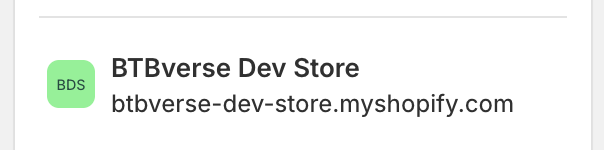
Use this .myshopify.com address as your Shopify Shop Domain. You can see it at the top of your Shopify admin and in the store switcher. Do not use your public www domain.
Send a test webhook and confirm it arrives
Go back to the Shopify Webhooks page. On the right of either webhook, click the “…” (three dots) menu and choose Send test. Then return to Settings → Webhooks in Kollab: within a few seconds a new row with an orange Test badge should appear (click the refresh icon if it does not show up straight away). Seeing that Test row is your proof the connection works. If nothing appears, recheck the URL, the signing secret, and that you actually saved both webhooks, then send the test again.
Orders now appear automatically
You are done. From now on, whenever a customer checks out using that discount code, the order flows in through the webhook, shows up in the campaign's Orders tab, and updates the monthly variable compensation on its own. There is nothing left to do by hand.
What data is captured
For each order: order ID, date, subtotal, total discounts, total price, line items, discount codes used, and shipping country. This data is used solely for compensation reporting and is not shared outside your organisation.
Kollab never processes or stores any personally identifiable information (PII) about your customers. We do not store customer names, email addresses, street addresses, or payment details.
Once your store is connected, send a test webhook from Shopify to confirm everything is wired up correctly. See Verify your integration for how to check the live event feed.
Settings → Webhooks lists your connected stores and a live feed of recent order events, so you can confirm tracking is working before a campaign goes live.
Open Settings → Webhooks. The top card lists your connected Shopify stores. Below it, the Webhooks table shows the most recent order events Kollab has received, each with a badge:
A test webhook sent from your Shopify admin. Confirms Kollab is receiving events from your store.
A real order whose discount code matched one of your campaigns. Confirms attribution is working end to end.
A good way to verify a new store: send a test webhook from your Shopify admin and confirm a Test row appears, then place a test order using a campaign discount code and confirm a Campaign matched row appears. Use the refresh button to re-check at any time.
Kollab is performance-based: you pay a platform fee only on creator sales it helps you attribute. There is no minimum and no upfront cost.
The platform fee is 15% of campaign-attributed creator sales that land on Shopify discount codes administrated by Kollab. It is metered automatically and charged monthly, on the 3rd, for the prior month. There is no minimum commitment: if a month has no attributed sales, there is nothing to pay. The current fee is shown on the pricing page, which is the authoritative source.
To activate, open Settings → Billing and click Activate billing. This opens a secure checkout to set up your payment method. Afterwards the page shows a status badge (Active, Trial, Past due, and so on) and the date of your next invoice.
Deals you import are fee-free
The fee covers collaborations Kollab matched. A campaign under a deal you imported yourself is exempt for as long as it runs, including follow-up campaigns with that creator, so its attributed sales never appear on an invoice.
Billing is required to like creators
You can browse Discovery without billing, but liking a creator (which forms a match) requires an active or trialing subscription. Activate billing before you start reacting to creators.
Once active, Settings → Billing lists all your invoices (platform fee and creator fees) with their status and amount, each with a button to pay or view and a PDF download. Use Manage billing or Find invoices to open your billing portal.
Who invoices you depends on the campaign. If a talent management is on it, the management always invoices you. Otherwise it is the creator or Kollab.
A management is on the campaign
The management always invoices you directly for their creator, no matter whether the creator has their own account or has turned on Kollab invoicing. Kollab does not bill or pay out for these campaigns.
A self-managed creator invoices you
If there is no management and the creator handles their own invoicing, they send you an invoice directly. Kollab is not involved in the payment.
Kollab invoices you for a self-managed creator
If there is no management and the creator has turned on Kollab invoicing, Kollab issues the invoice for you, with the correct VAT, and pays the creator out once you have paid.
For Kollab-invoiced creators, you receive a single collective invoice each month covering all of them, so you make one payment instead of many. Payment terms are 14 days, and you can pay by card or bank transfer straight from the invoice. As soon as the collective invoice is paid, Kollab pays each creator out automatically and the individual creator invoices (with the right VAT) are available as PDFs.
The amounts come from each campaign's monthly compensation rows. See Monthly compensation data for how those are set.
The Notifications page collects every notification Kollab sends you (matches, campaign updates, comments, and Shopify orders) in one place.
Click Notifications in the sidebar to open your notification centre. Each notification is timestamped and linked to the relevant match, campaign, or comment. Unread notifications are highlighted.
You can mark individual notifications as read by clicking them, or clear all at once with Mark all as read. Notifications that are also sent by email (based on your Settings → Notifications preferences) are still stored here.
Go to Settings → Team. Click Invite team member to copy a sign-up link to share. Anyone who signs up with a work email on your domain joins your organisation automatically, so colleagues do not need an individual invite email. The first person to register with a domain becomes admin.
Account owner with full access. Can edit roles, invite members, and manage billing and payout details.
Can invite members and manage campaigns.
Can take part in daily operations and invite team members.
Kollab sends notifications for every key event. You can control which are delivered by email and which appear only in the app.
Go to Settings → Notifications. Each notification type has separate Email and In-app toggles. Events covered include new matches, new campaign comments, new files uploaded, and Shopify orders attributed to a campaign.
All notifications (including those sent by email) are also stored on the Notifications page (/app/notifications). You can mark them as read individually or clear all at once.
Kollab supports passwordless sign-in via passkeys (Face ID, Touch ID, hardware security keys). These are managed in Settings.
Go to Settings → Security. You'll see a list of registered passkeys (device name and registration date). To add a new passkey, click Add passkey and follow your device's biometric or security key prompt.
You can also sign in with Google or a magic link at any time. Passkeys are an additional option, not a requirement.
You can delete your account at any time. The deletion is scheduled, reversible until the date, and you can also ask us to erase everything we hold.
Open Account settings
Go to Settings and open the Account section.
Click Delete account
Type your email to confirm. Your account is then scheduled for deletion at the end of next month.
Cancel anytime before the date
You can undo the deletion until the scheduled date, and your account stays fully functional until then.
What is removed
Your login, sessions, and account data, together with your uploaded files and notifications. Invoicing and tax records are kept for as long as the law requires.
Your public brand profile
If you are the last member to leave, your organization is deactivated. Your public brand profile may remain visible to the creators and managements you have worked with, shown with an Inactive badge so they know you are no longer active on Kollab.
Want everything erased?
To have the remaining profile data deleted as well, email dpo@joinkollab.com. We handle requests within a month. See our Privacy Policy for details.
Support is one tap away from anywhere in Kollab. A green WhatsApp button sits in the bottom-right corner of every page once you are signed in.
Use it for questions, feedback, or to report a bug. Opening it starts a WhatsApp chat that is already pre-filled with a bit of context (your name, account type, and the page you were on), so you do not have to explain your setup before getting an answer.
A real person reads every message
Your messages are answered by a real human, not a bot. Because a person picks them up, it can take a few minutes for a message to be seen and processed. The average wait is usually 15 to 30 minutes.
You can also browse these docs at any time for self-serve answers.
Comments & files
Every campaign has a shared comments thread and a file library visible to all parties: brand, creator, and talent management.
The comment thread lives in the Information tab. It works like a team thread: post messages, reply to specific comments, mention a participant to notify them directly, attach files, and react with emoji. All participants across the brand, creator, and management organisations can read and post. A row of access avatars shows exactly who can see the campaign, and Kollab sends a notification for every new comment, reply, and mention.
The Documents tab organises uploads by type:
Briefing
Insights
Placements
Brand assets
Legal documents