Kollab
Docs
Kollab is an influencer marketing platform that connects brands with creators and talent managements to run influencer marketing campaigns.
As a brand, Kollab gives you a single workspace to find creators, agree deals with them, track campaign performance, measure Shopify revenue attributed to each creator, and collaborate on briefs and assets, without spreadsheets or email chains.
The core flow is: Outreach → Messages → Match → Campaign → Revenue tracking. Your outreach reaches creators and managements. Creators who like your brand, and creators that managements propose to you, show up in Messages. When you like one back, it is a match: you can message each other and create campaigns for it. From there you manage the collaboration and can add a store for order tracking.
Brands can use Kollab without an online shop. Campaigns, messages, documents and link clicks work without a store connection. A discount code is required for a tracked link and for campaign completeness when a store is added. Without a store, the code is optional for the campaign. Orders and sales appear after the brand adds a store, with a setup notice until webhook receipt is confirmed. Recorded orders remain visible if the store is removed.
Brand accounts require a company email address and a brand website. Personal email addresses are not accepted.
Open the sign-up page
Go to joinkollab.com/signup. You can continue with Google or with a magic link sent to your email. No password is needed.
Enter your name and choose Brand
Pick Brand as your account type so Kollab sets up a brand workspace for you.
Add your organisation name and website
Enter your company name and your brand website (e.g. yourbrand.com). Brand accounts require a company email: free providers (Gmail, Hotmail, Yahoo, etc.) are blocked, and your email domain must match your website domain. If they don't match, Kollab shows the exact reason so you can correct it.
Accept the terms and finish
Confirm you accept the terms and privacy policy to complete sign-up. You land directly in your brand workspace.
Set up your brand profile
Add your brand logo and a short description. This is what creators and managements see when they open your brand profile.
Joining an existing team
If your company already has a Kollab account, signing up with the same email domain is detected automatically, and Kollab offers to join you to the existing organisation instead of creating a new one. The first person to register with a domain becomes admin; colleagues who join later become members.
Your brand profile is what creators and talent managements see before deciding whether to work with you.
From your Home dashboard, click your brand name to open the brand profile editor. The key fields are:
Your brand's public-facing name.
Uploaded to Kollab storage. Shown on proposals and campaigns.
A short paragraph about your brand, products, and the kind of creators you're looking for.
Signals your typical per-creator budget range to set expectations before a proposal is sent.
Messages is where creators and managements reach you, where you decide on them, and where you talk about the deal. You have one conversation with each creator and with each management.
Open Messages in the sidebar. The list shows your conversations, with the latest activity first. A dot marks a conversation with something new, and an Open badge marks one where a creator waits for your answer. The number on Messages in the sidebar counts the conversations that are unread or open. Type in the search field to find a conversation by name. Everyone on your team sees the same conversations, and each person has their own unread state.
Click a conversation to open it. The header says who can read it: only your brand and that creator or management. Cards and messages share one timeline, oldest first. The Details panel next to it lists your Campaigns with this party and the Files sent in the conversation. With a management, it also lists the Creators it proposed and, after a contact from Outreach, your Brief. On a phone, open the details with the panel button in the header. The tabs above the list filter it:
Every conversation that is not archived.
Conversations where a creator waits for your answer. Reading a conversation does not clear it: your like or pass does.
Conversations where you passed every creator, with no match and no message since. A new message, a new proposal, or an undo brings a conversation back.
Messages or campaign comments?
Use Messages for the relationship and the deal: interest, price, scope, and the next campaign. Use the comments on a campaign for the work on that campaign, such as the brief, content drafts, and feedback. See Comments & files.
A creator shows up in your Messages only after they like your brand. You then like them back to match, or pass.
Your outreach proposes your brand to matching creators, and creators can also like your brand from its profile. You never see who your outreach reached, and you never hear about a pass. When a creator likes your brand, a conversation with an Interested creator card appears in your list. The card shows the creator, their pitch if they wrote one, and the name of the outreach sequence that reached them, if one did. The name and the picture open the creator's profile. Until you react, the creator can undo the like, and the conversation then leaves your list.
Review the creator
Open the conversation, or use the Open tab to see every creator who waits for your answer. Check the creator's profile and pitch.
Like or pass
Click Like to accept. Click Pass to decline: choose a reason and add an optional note. The creator sees your reason, and the conversation moves to Archived. If you change your mind, click Undo on the card.
A match forms at once
Because the creator already liked your brand, your like creates the match right away. You can now message each other, and both sides get a New Match notification.
A new match counts toward your plan
Each like that creates a new match uses one of your plan's new matches for the month. A pass never counts. A connected store is optional for likes and matches. See Match limit.
Contact a management, and it can propose creators from its roster. You talk with each management in one conversation, and you like or pass each creator it proposes.
Click Contact next to a management in an outreach sequence, or Approach on a management's profile, and send a short intro. Kollab opens a conversation with that management in Messages. Your intro is the first message, and a contact from a sequence also shows your outreach brief. Both sides can write right away. A management can also propose creators without a contact from you, which opens the conversation too.
Each creator the management proposes shows as a Proposal card with the management's pitch. Like or pass each creator on its own: a like creates a match for that creator, and a pass needs a reason, which the management sees. The management can withdraw a proposal until you react. Under Creators in the details, each proposed creator shows its status:
The creator waits for your answer. Click the status to like or pass.
You liked the creator, so it is a match.
You passed. Click the status to see your feedback or to undo the pass.
Only you and the management read it
All proposals from one management share one conversation. The creators it proposes never see this conversation, and they never see the pitches the management writes.
A match forms when you like a creator who liked you, or a creator that a management proposed. Messaging opens, and you create a campaign when you are ready.
After a match, the like and pass buttons go away, and both sides can write. Agree the deal in the conversation (see Agreeing price & scope), then create the campaign and fill it in. It shows under Campaigns in the conversation's details and on your Campaigns page.
Create the campaign
Click New campaign under Campaigns in the conversation's details, or Add Campaign on the Campaigns page. Select the match if asked, enter a name, and click Add campaign. The campaign opens.
Add duration and compensation
Add one row per month covered. Each row has a month, fixed compensation (€), and optional variable compensation (% of Shopify sales).
Add tracking codes
A discount code is required when a store is connected and optional otherwise. Add a code and a destination URL to enable link click tracking, with or without a store.
For a follow-up campaign with the same creator, create another campaign for the same match. If you already work with a creator outside Kollab, use Importing an existing deal instead: it creates the campaign without waiting for a like, and marks it Imported.
Once a conversation is open, you write in it like in any chat. Messages have the same tools as campaign comments.
Type in the box at the bottom of the conversation. Enter sends, and Shift + Enter adds a line. On a touch screen, Enter adds a line and Send sends. Until a conversation opens, a note in place of the box says what opens it, for example “Messaging opens after you match.” A conversation with a creator opens when you match. A conversation with a management opens with your contact or its first proposal.
Attach a file or a link, or drop a file onto the conversation. Every file also shows under Files in the details.
Add emoji from the picker, or type a colon and the start of an emoji name.
Type @ to mention someone from either side of the conversation.
React to a message, or reply to it with a quote.
Edit or delete your own message within 24 hours of sending it. A deleted message shows “This message was deleted.”
Your own messages show ticks: one gray tick while a message sends, two gray ticks once it is sent, and two colored ticks once someone on the other side has read it. To hide when you read messages, turn off Read receipts under Settings → Notifications. Then you also do not see when others read yours. While someone on the other side types, three dots show under the last message, and “typing...” in the list of conversations.
Emails about unread messages
New messages do not show on the Notifications page. When a message stays unread for 15 minutes, Kollab emails everyone on your team who has not read it yet. Several messages in a row give one email. To stop these emails, turn off New messages under Settings → Notifications.
Already working with a creator outside Kollab? Bring that collaboration over so tracking, compensation, and invoicing all live in one place.
Importing is for collaborations you already run. You tell Kollab who the creator is and what you agreed, and the campaign is created straight away. The creator does not need to approve anything, and you do not need to wait for a match. Importing is available to brand accounts.
Open Campaigns and click Import existing
The button sits next to Add campaign, above the campaign list.
Find the creator by Instagram handle
Paste their handle or profile URL and click Find. If they are already on Kollab you will see their name and picture, plus any managements that represent them. If they are not, we pull their public Instagram profile, which takes up to a minute. If you are already connected with this creator on Kollab, use Add campaign instead.
Name the deal and say who it runs through
Give the campaign a name. If the creator is listed by a talent management on Kollab, choose whether you agreed the deal directly with the creator or through one of those managements. Only managements that already list this creator appear, and the one you name gets access to the campaign.
Add the codes
Community discount code, free products code, and your affiliate link. All three are optional, but without a discount code there is nothing to attribute sales to. Codes are a single word of letters and numbers, and the discount code cannot already be in use on another of your campaigns.
Set the months and compensation
Pick a start and end month (up to 36 months), then add a fixed fee and a % of sales for every month. Use whole numbers, with the % between 0 and 100. Both are required on every row, so enter 0 where a month has none. Click Import deal to create the campaign.
An import counts as a new match
Each import creates a match, so it uses one of your plan's new matches for the month. Follow-up campaigns with that creator do not count again. At your limit, the first step shows an Upgrade button instead of the handle field. See Match limit.
Tracking starts now
Attribution begins the moment the campaign exists. Orders placed before today are not included, even for months you back-date, so the early months of a long-running deal will show compensation without matching sales.
If the creator is already on Kollab, or you named their management, you land on the new campaign straight away. If the creator is not on Kollab yet, you get a short message in German or English to send them through whatever channel you already use. The campaign is live for you either way: it appears for the creator once they sign up and connect the Instagram account you named. The import also opens a conversation in Messages with the creator, or with the management you named, and you can write there right away. A creator who is not on Kollab yet reads your messages after joining. Imported campaigns behave exactly like any other from here, so Discount & tracking codes and Monthly compensation data both apply unchanged.
A campaign tracks all activity between your brand and a creator over a defined period of months.
Every campaign has a status determined automatically by its monthly data:
No monthly data rows added yet, or all months are in the future.
The current calendar month falls within the campaign's month range.
All months in the campaign have passed.
Archiving is separate from status. A brand can archive a draft campaign that never went live, which moves it to a dedicated Archived tab; see Archiving a campaign.
A campaign carrying an Imported badge is one you brought over yourself. The badge is the only difference: everything below applies to it unchanged.
Every campaign has Information, Documents and Performance tabs. Orders is available when a store is added or historical orders exist:
Codes (discount code, community link, affiliate link, free product code), the shared comment thread, and a compensation sidebar showing monthly rows.
Files shared across the campaign: briefings, brand assets, placement guidelines, and legal documents.
Monthly link clicks and creator compensation. With a store or recorded orders, sales metrics are included too.
Recorded orders attributed to this creator's discount code, grouped by month. This tab is hidden without a store or historical orders.
The Home dashboard shows KPIs for the selected period. Without a store or historical orders, it shows link clicks and creator compensation. Sales metrics and order exports are added when a store or recorded orders are available.
Gross Shopify revenue attributed to all creator discount codes this month across every live campaign.
Total fixed fees plus variable compensation owed to all creators this month.
Total sales divided by total compensation: a high-level view of return on influencer spend.
The same KPIs appear at the top of the Campaigns page, filtered to your currently selected campaigns view. For per-campaign detail, open a campaign and use the Performance tab (monthly compensation rows) and Orders tab (individual Shopify orders).
Each month of a campaign has its own row with compensation details. You can add, edit, and remove rows at any time.
Navigate to the Performance tab inside a campaign. Each row represents one calendar month and contains:
The calendar month this row covers (e.g. May 2025).
A guaranteed flat fee paid to the creator for that month, regardless of sales (€).
A percentage of Shopify gross sales attributed to the creator's discount code that month. Calculated automatically once Shopify is connected.
Clicks on the creator's community discount link for the month. Tracked automatically by Kollab.
The total creator compensation for a month is: Fixed fee + (Shopify sales × Variable %). The Home dashboard and Campaigns page aggregate this across all live campaigns.
These monthly amounts are net fees (excl. VAT). Who invoices you for them (the management if one is on the campaign, otherwise the creator or Kollab on the creator's behalf) is covered in Invoices.
You can agree price and scope with the creator or the management in your conversation in Messages, or outside Kollab. Either way, the final number goes into the campaign and is entered by you, the brand.
Your conversation in Messages is the easiest place to agree price and scope, and we recommend it because it keeps a written trail with the other side. You are also free to agree on a call or in person; only the final numbers need to land in the campaign's compensation.
How to enter the agreed price
The price is entered by you, the brand, as a net fee, excl. VAT and incl. all management fees (VAT may be added on top when it is invoiced). That exact figure is what gets invoiced to you (the management invoices if one is on the campaign, otherwise the creator, or Kollab on the creator's behalf) and what your campaign analytics are based on.
If you enter the wrong amount, you will be invoiced the wrong amount and your analytics (ROI and more) will be off. You set these values in Monthly compensation data; you can confirm the agreement itself in the conversation (see Writing messages).
Kollab uses three types of codes to attribute Shopify orders and clicks back to individual creators.
Discount code
A Shopify discount code unique to this creator (e.g. SARA15). When a customer uses it at checkout, the order is automatically matched to this campaign and used to calculate variable compensation.
Affiliate link
The destination URL the creator sends their audience to (e.g. your Shopify store with UTM params). Enter this here and Kollab generates a community discount link that tracks clicks and redirects to it.
Community discount link
Auto-generated by Kollab using the discount code. Creators share this link; every click is tracked automatically and added to the monthly click count in the Data tab.
Free product code
A Shopify code for the creator's personal product samples. Not used in compensation calculations.
Codes are entered in the campaign's Information tab. They are displayed to all campaign participants and can be copied with one click.
Archiving clears a draft campaign that is not going ahead out of everyone's active lists, without deleting anything.
When a collaboration falls through before it starts, for example the creator backs out or a negotiation stalls, you can archive the campaign. Archiving hides it from the default campaign lists for you, the creator, and the talent management, and notifies the creator and management. Nothing is deleted: the campaign, its comments, and its files stay intact, and you can restore it at any time.
Only draft campaigns can be archived
Archiving is limited to draft campaigns that never went live. Once a campaign has gone live or has any attributed Shopify orders, it can no longer be archived, so your reporting history stays complete.
To archive a campaign:
Open the campaign
Go to Campaigns and open the draft campaign you want to archive.
Open the campaign menu
Click the menu button in the campaign header and choose Archive campaign.
Pick a reason
Select a reason (creator backed out, negotiation failed, no longer needed, duplicate, or other) and add an optional note for your team.
Confirm
Confirm to archive. The creator and management are notified, and the campaign moves to the Archived tab.
Restoring an archived campaign
Archived campaigns are hidden from the default lists but stay available under the Archived tab on the Campaigns page. To bring one back, open it and click Restore on the archived banner, or choose Unarchive campaign from the menu. It reappears in the normal lists right away. Only your brand can archive or restore a campaign.
Outreach lets you brief the Kollab team on the type of creator you need. Kollab scores talent managements already on the platform and also reaches out to creators and talent managements not yet on Kollab.
Navigate to Outreach in the sidebar and click New Sequence. Describe the creator profile you are looking for and the campaign focus. Kollab uses this brief to score talent managements already on the platform and to run direct outreach to creators and talent managements not yet registered.
Create a sequence
Enter a creator profile description and campaign focus. This brief is used both for AI scoring and for Kollab team outreach.
Run AI research
Click Run Research. Kollab scores each talent management on the platform across three dimensions and ranks them by total score.
Review scores
Each talent management shows a breakdown: Audience Fit (60% weight), Prestige Alignment (25%), and Category Expertise (15%).
Check the accepted deal types
Talent managements can report which deal structures they accept: fixed fee, hybrid, affiliate, or any combination. It shows next to their name and again when you draft your message. It is self-reported and does not filter the list, so a management that has not answered yet shows nothing.
Contact a management
Click Contact next to a management, write a short intro, and click Send. Kollab opens a conversation with the management in Messages, where it can answer you and propose creators. The button then shows Contacted.
Kollab's AI engine evaluates every talent management against your outreach brief using three weighted dimensions.
Audience Fit (60%)
How closely the creators in this talent management's roster match the demographics, interests, and platform profile of your target customer.
Prestige Alignment (25%)
Whether the talent management's positioning and creator tier (nano, micro, macro) aligns with your brand's perceived prestige and budget tier.
Category Expertise (15%)
Whether the talent management has demonstrable experience in your product category (e.g. beauty, fitness, gaming).
Kollab also generates an AI brief per talent management: a short description of the ideal creator and campaign goals tailored to their roster. Use this as a starting point for your outreach message.
Connecting your Shopify store enables automatic order attribution to campaigns and real-time variable compensation calculation.
Kollab listens for Shopify order webhooks and matches incoming orders to campaigns by checking whether the order's discount code matches any campaign's registered discount code. Matched orders appear in the campaign's Orders tab and feed into the monthly variable compensation calculation.
Setup is a one-time job and takes about five minutes. You create two webhooks in your Shopify admin that both point at the Kollab address below, then register your store here with the signing secret Shopify gives you. Copy this exact URL, you will paste it into Shopify twice:
https://joinkollab.com/api/shopify/webhooks/order
Open the webhook settings in your Shopify admin
Log in to your Shopify admin. In the very bottom-left corner click Settings. In the menu that opens, click Notifications. Scroll to the bottom of the Notifications page and click Webhooks. This is the screen where Shopify sends a copy of each order to an outside service like Kollab.
Create the first webhook: Order creation
Click the Create webhook button. A small form appears. Set Event to “Order creation”. Set Format to JSON (not XML). In the URL field, paste the Kollab address from above exactly as it is. For Webhook API version, always choose the newest one in the list (it is labelled “latest”, for example 2025-10). Click Save. You should now see an “Order creation” row pointing at the Kollab URL.
Create the second webhook: Order update
Click Create webhook again to add a second one. This time set Event to “Order update”. Keep Format on JSON, paste the same Kollab address again, and once more choose the latest Webhook API version. Click Save. You need both webhooks: “Order creation” catches new orders and “Order update” keeps the numbers correct when an order changes later (for example a refund or a cancellation).
Copy your webhook signing secret
Stay on the same Webhooks page and scroll to the very bottom. You will see a line that reads “Your webhooks will be signed with” followed by a long string of letters and numbers. That string is your signing secret. Select the whole string and copy it (Ctrl/Cmd + C). Kollab uses it to confirm that incoming orders genuinely came from your store and not from someone pretending to be you.

This is the secret. It sits at the very bottom of the Webhooks page, under “Your webhooks will be signed with”. Copy the whole string, not just part of it.
Register your store in Kollab
Switch back to Kollab. Open Settings, then Webhooks, then click Add store. In the Shopify Shop Domain field type your store address that ends in .myshopify.com (for example yourbrand.myshopify.com). This is NOT your public website address (like www.yourbrand.com): it is the internal .myshopify.com address. In the Webhook Signature field paste the signing secret you just copied. Click Add to save.
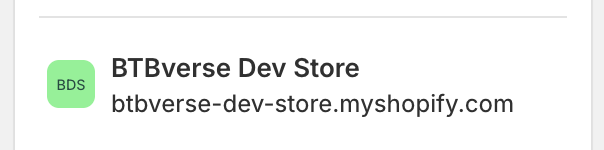
Use this .myshopify.com address as your Shopify Shop Domain. You can see it at the top of your Shopify admin and in the store switcher. Do not use your public www domain.
Send a test webhook and confirm it arrives
Go back to the Shopify Webhooks page. On the right of either webhook, click the “…” (three dots) menu and choose Send test. Then return to Settings → Webhooks in Kollab: within a few seconds a new row with an orange Test badge should appear (click the refresh icon if it does not show up straight away). Seeing that Test row is your proof the connection works. If nothing appears, recheck the URL, the signing secret, and that you actually saved both webhooks, then send the test again.
Orders now appear automatically
You are done. From now on, whenever a customer checks out using that discount code, the order flows in through the webhook, shows up in the campaign's Orders tab, and updates the monthly variable compensation on its own. There is nothing left to do by hand.
What data is captured
For each order: order ID, date, subtotal, total discounts, total price, line items, discount codes used, and shipping country. This data is used solely for compensation reporting and is not shared outside your organisation.
Kollab never processes or stores any personally identifiable information (PII) about your customers. We do not store customer names, email addresses, street addresses, or payment details.
Once your store is connected, send a test webhook from Shopify to confirm everything is wired up correctly. See Verify your integration for how to check the live event feed.
Settings → Webhooks lists your connected stores and a live feed of recent order events, so you can confirm tracking is working before a campaign goes live.
Open Settings → Webhooks. The top card lists your connected Shopify stores. Below it, the Webhooks table shows the most recent order events Kollab has received, each with a badge:
A test webhook sent from your Shopify admin. Confirms Kollab is receiving events from your store.
A real order whose discount code matched one of your campaigns. Confirms attribution is working end to end.
A good way to verify a new store: send a test webhook from your Shopify admin and confirm a Test row appears, then place a test order using a campaign discount code and confirm a Campaign matched row appears. Use the refresh button to re-check at any time.
Kollab has three plans for brands: Start, Pro and Max. They differ in the number of new matches each month.
Every brand starts on Start, which is free and needs no card. Pro and Max are paid plans with monthly or yearly payment, plus VAT. Yearly payment costs less. Every plan includes AI matching with hit score, AI outreach, Messages, campaigns, deal import, discount codes and tracked links with click counts, Shopify sales tracking with a connected store, and unlimited team members. The current prices are on the pricing page.
Start
2 new matches each month. AI matching and AI outreach included, with fair use. WhatsApp support.
Pro
Everything included in Start, plus: 10 instead of 2 new matches each month.
Max
Everything included in Pro, plus: No limit on new matches. Priority WhatsApp support.
To buy a plan, open Settings → Billing and click See plans, or click Upgrade where the app offers it. Choose monthly or yearly payment and click Subscribe. A secure checkout opens for your card and your billing details. Plans take card, Link, Apple Pay and Google Pay. Kollab is for businesses only.
What you pay a creator is between you and the creator, and it shows in Monthly compensation data.
Your plan sets how many new matches your team can make each month. Messages, campaigns and follow-up campaigns never count.
Every new match counts: when you like a creator back, when you like a creator that a management proposed, and when you import a deal. A pass never counts. Your existing matches, their messages and their follow-up campaigns have no limit.
On Start, your new matches renew on the first of each month. On Pro and Max, they renew on your billing day each month, also on a yearly plan. Unused matches do not carry over. Only Settings → Billing shows how many your team used.
Near your limit
The bottom of the sidebar says Close to limit. Click it to open the plan dialog.
Included matches used
A line under Like on the creator card tells you, and the import wizard shows the same line.
At your limit
The line says Upgrade now to unlock more matches, and the sidebar says Exceeded limit with the percent you used. Like and the import wizard open the plan dialog. Upgrade, or wait for your next month.
Creators and managements see no change
Your limit never blocks a creator or a management. A creator's like waits for your answer, and a management's proposal stays open, until you upgrade or your next month starts. Nobody outside your team sees your plan.
An upgrade starts at once. A downgrade starts on your next billing date, and only admins of your team can make it.
Open the plans
Click See plans in Settings → Billing, or Upgrade in the app. The plan dialog opens with yearly payment selected. Switch to monthly if you prefer.
Upgrade
Click Subscribe on a higher plan. Your first purchase opens a secure checkout. A change between paid plans opens your billing portal, which shows the amount, the VAT, and the credit for the unused part of your old plan. The new plan and its new matches start at once, with a new billing date.
Downgrade
Only admins downgrade, with Downgrade in the plan dialog. From Max to Pro, click it on the Pro card. From yearly to monthly payment, switch to monthly and click it on your plan. Your billing portal then asks you to confirm, and the change starts at the end of your paid period. From a monthly plan to Start, click it on the Start card: the plan runs to the end of the paid month. Until a downgrade starts, an admin can undo it with one click, for example Keep Pro.
A paid plan renews until it ends. Settings → Billing shows the next renewal date. To end the plan, an admin downgrades it to Start, or you write to us. If you delete your organization, the plan also ends at the end of the paid period. Kollab does not refund the rest of a paid period. Use Manage billing in Settings → Billing to change your card, your company name, your billing address and your VAT ID.
If a payment fails
You keep your plan while the payment is retried. Settings → Billing shows Pay now and Update card. If the last retry fails, your plan ends and your team is on Start. You owe nothing for the unpaid period.
Kollab invoices your plan. For creator fees, who invoices you depends on the campaign: a management if one is on it, otherwise the creator or Kollab.
Each plan payment has its own invoice, with VAT or the EU reverse charge. Settings → Billing lists your plan invoices and your creator fee invoices with their status and amount. Download each one as a PDF, and pay open invoices there.
For creator fees, who invoices you depends on the campaign:
A management is on the campaign
The management always invoices you directly for their creator, no matter whether the creator has their own account or has turned on Kollab invoicing. Kollab does not bill or pay out for these campaigns.
A self-managed creator invoices you
If there is no management and the creator handles their own invoicing, they send you an invoice directly. Kollab is not involved in the payment.
Kollab invoices you for a self-managed creator
If there is no management and the creator has turned on Kollab invoicing, Kollab issues the invoice for you, with the correct VAT, and pays the creator out once you have paid.
For Kollab-invoiced creators, you receive a single collective invoice each month covering all of them, so you make one payment instead of many. Payment terms are 15 days, and you can pay by card or bank transfer straight from the invoice. As soon as the collective invoice is paid, Kollab pays each creator out automatically and the individual creator invoices (with the right VAT) are available as PDFs.
The amounts come from each campaign's monthly compensation rows. See Monthly compensation data for how those are set.
The Notifications page collects your notifications (matches, campaign updates, comments, and Shopify orders) in one place. New messages show in Messages instead.
Click Notifications in the sidebar to open your notification centre. Each notification is timestamped and linked to the conversation, campaign, or comment it is about. Unread notifications are highlighted.
You can mark individual notifications as read by clicking them, or clear all at once with Mark all as read. Notifications that are also sent by email (based on your Settings → Notifications preferences) are still stored here. New messages are not: the number on Messages in the sidebar shows them, and Kollab emails you when a message stays unread for 15 minutes.
Go to Settings → Team. Click Invite team member to copy a sign-up link to share. Anyone who signs up with a work email on your domain joins your organisation automatically, so colleagues do not need an individual invite email. The first person to register with a domain becomes admin.
Account owner with full access. Can edit roles, invite members, and manage billing and payout details.
Can invite members and manage campaigns.
Can take part in daily operations and invite team members.
Kollab sends notifications for every key event. You choose which of them also reach you by email.
Go to Settings → Notifications. In-app notifications are always on. Under Email, switch each notification type on or off. Events covered include new matches, new campaign comments, new files uploaded, and Shopify orders attributed to a campaign. New messages is email only: it emails you when a message stays unread for 15 minutes.
Every notification except new messages (including those sent by email) is also stored on the Notifications page (/app/notifications). You can mark them as read individually or clear all at once.
Kollab supports passwordless sign-in via passkeys (Face ID, Touch ID, hardware security keys). These are managed in Settings.
Go to Settings → Security. You'll see a list of registered passkeys (device name and registration date). To add a new passkey, click Add passkey and follow your device's biometric or security key prompt.
You can also sign in with Google or a magic link at any time. Passkeys are an additional option, not a requirement.
You can delete your account at any time. The deletion is scheduled, reversible until the date, and you can also ask us to erase everything we hold.
Open Account settings
Go to Settings and open the Account section.
Click Delete account
Type your email to confirm. Your account is then scheduled for deletion at the end of next month.
Cancel anytime before the date
You can undo the deletion until the scheduled date, and your account stays fully functional until then.
What is removed
Your login, sessions, and account data, together with your uploaded files and notifications. Invoicing and tax records are kept for as long as the law requires.
Your public brand profile
If you are the last member to leave, your organization is deactivated. Your public brand profile may remain visible to the creators and managements you have worked with, shown with an Inactive badge so they know you are no longer active on Kollab.
Want everything erased?
To have the remaining profile data deleted as well, email dpo@joinkollab.com. We handle requests within a month. See our Privacy Policy for details.
Support is one tap away from anywhere in Kollab. A green WhatsApp button sits in the bottom-right corner of every page once you are signed in.
Use it for questions, feedback, or to report a bug. Opening it starts a WhatsApp chat that is already pre-filled with a bit of context (your name, account type, and the page you were on), so you do not have to explain your setup before getting an answer.
A real person reads every message
Your messages are answered by a real human, not a bot. Because a person picks them up, it can take a few minutes for a message to be seen and processed. The average wait is usually 15 to 30 minutes.
You can also browse these docs at any time for self-serve answers.
Comments & files
Every campaign has a shared comments thread and a file library visible to all parties: brand, creator, and talent management.
The comment thread lives in the Information tab. It works like a team thread: post messages, reply to specific comments, mention a participant to notify them directly, attach files, and react with emoji. All participants across the brand, creator, and management organisations can read and post. A row of access avatars shows exactly who can see the campaign, and Kollab sends a notification for every new comment, reply, and mention.
Use the comments for the work on this campaign, such as the brief, content drafts, and feedback. Talk about the deal itself (price, scope, a next campaign) with the creator or management in Messages.
The Documents tab organises uploads by type:
Briefing
Insights
Placements
Brand assets
Legal documents